
Features
Everything remote access needs,
in one environment
From the basics like screen control and file transfer to unattended-device checks and process monitoring — sign in once from a browser and use the remote PC with your own settings.
Core feature 01
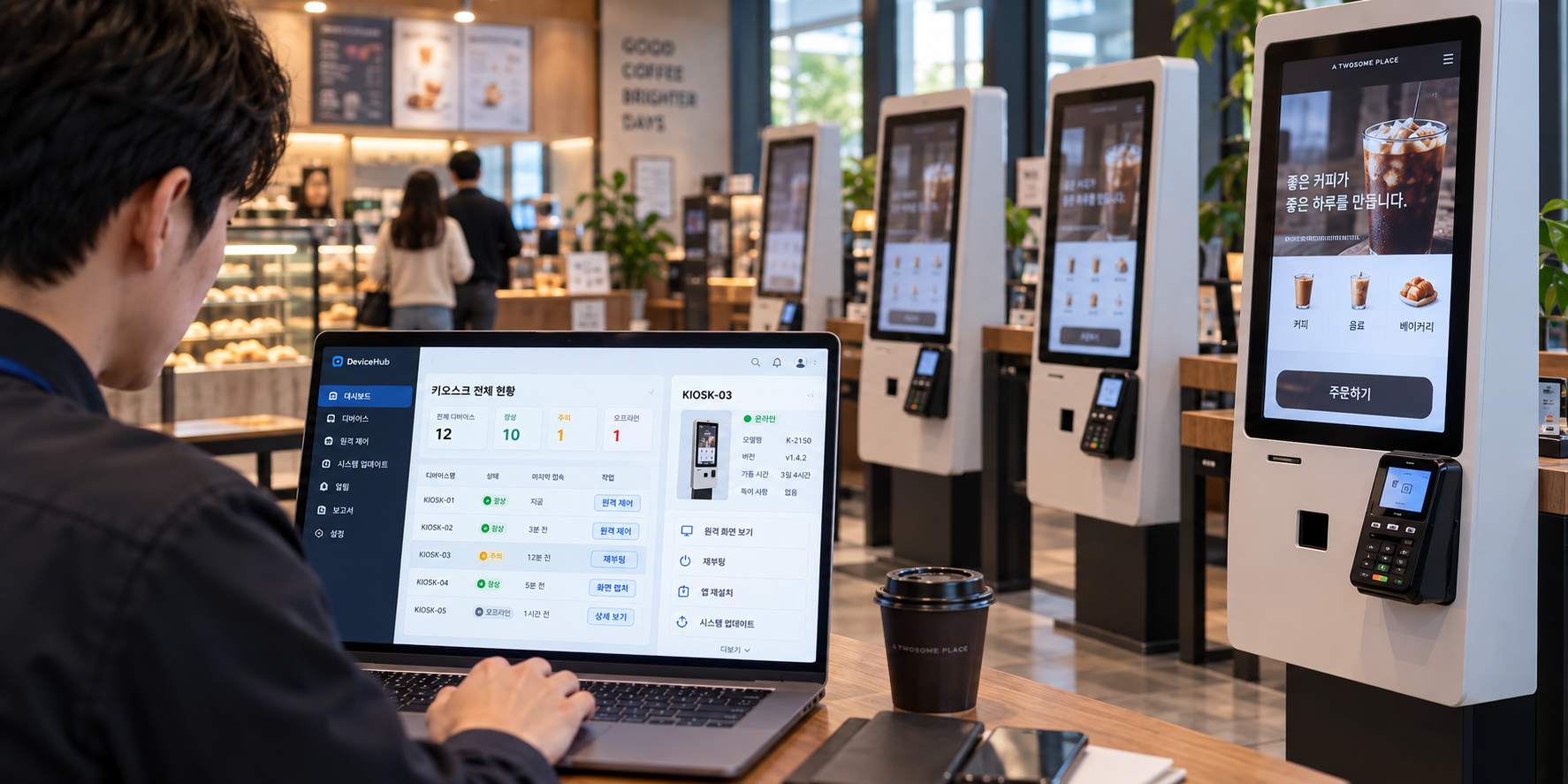
See and control as if you were there
Control your PC remotely as if you were there, viewing and interacting in real time.
- High-resolution display
- Clipboard/Printer sharing
- Auto Optimization for Multi-Monitor & Resolution
- Remote control via mobile
Core feature 02
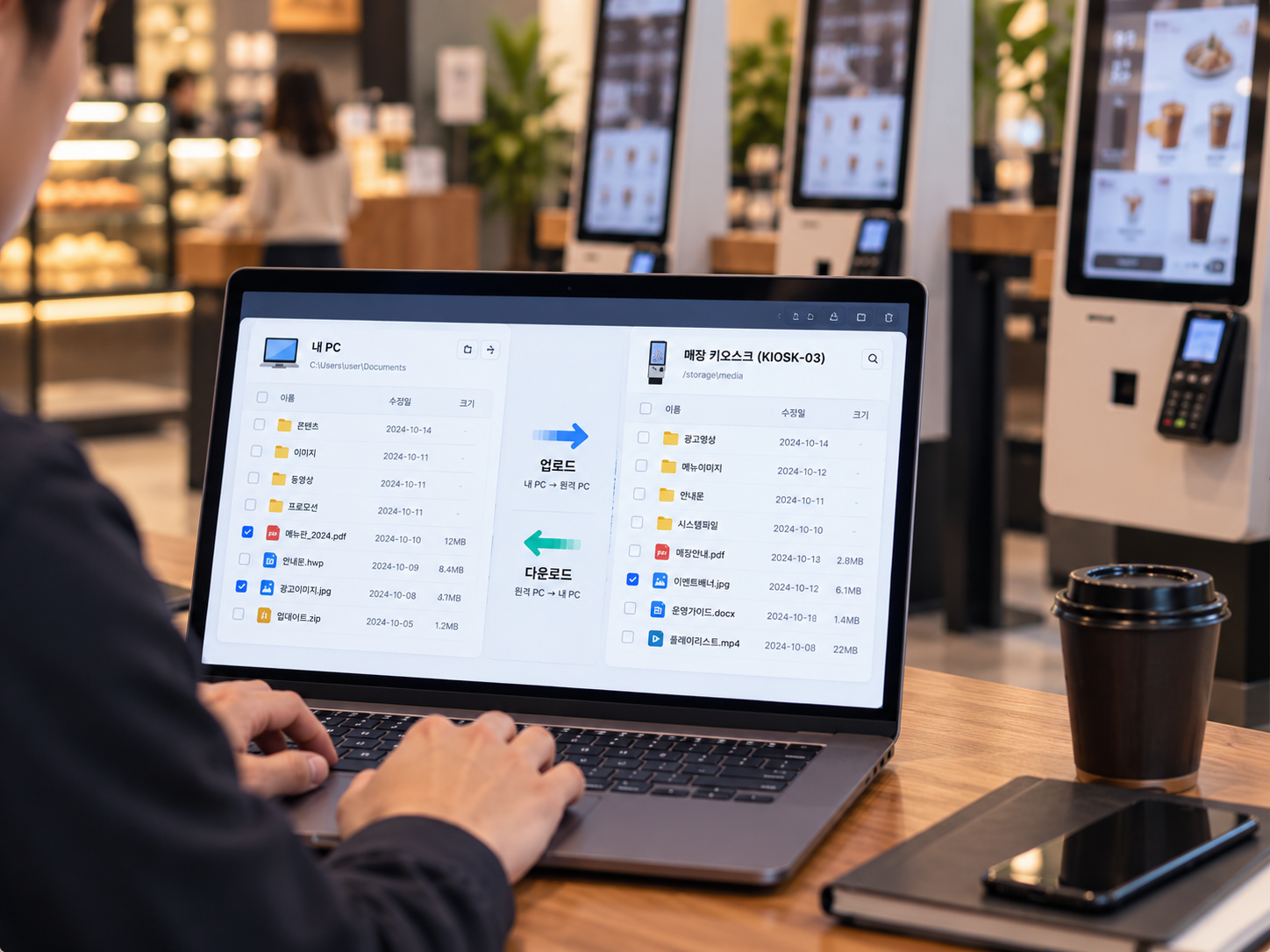
Send and receive files in both directions
Transfer files both ways after connection, suitable for various remote management tasks including unattended kiosks.
- Supports clipboard, printer, and file transfer
- Web login, then select a registered PC
Also included
Down to what remote support and operations need
Sharing symptoms, supporting together and checking processes — the tools you need when running remote PCs are included.
Multi High-Resolution Monitor Support
Optimized compression and network speed even for 4K+ monitors.
Screen Recording & Capture
Record or capture screens to easily share issues for diagnosis or support.
Collaboration Remote Support
For cooperative maintenance of remote devices, offers drawing, voice, and chat support features.
Process Monitoring & Execution
Monitor and run processes on remote PCs without screen sharing for faster task handling.
All Features
Every Feature at a Glance
See the full set of detailed features PCAny provides.
Screen Sharing & Viewing
Show the remote screen the way you need
Screen Sharing
Share the entire screen of the remote computer.
Share a Specific Application
Share just one application instead of the full screen for a more secure session.
Dual Monitor
If the remote computer uses dual monitors, both screens appear on the viewer's computer.
Display Settings
Change the screen scale to 50%, 75%, 100%, or full screen.
Auto Resolution Match
Automatically matches screen resolution between the remote and viewer computers.
True Color Support
Supports 2, 4, 16, and 256 true color, with resolution changes available mid-session.
Remote Control & Input
Control directly with keyboard and mouse
Remote Control
Control the remote computer with your keyboard and mouse; allow or block it in settings.
Mouse & Keyboard Lock
Lock or unlock the remote computer's mouse and keyboard.
Mobile Support
Control the remote computer from the Android app.
Communication & Guidance
Chat and guide right on the screen
Chat
Chat in real time between the remote and viewer computers.
Drawing
Draw directly on the screen to point things out to the remote user.
Send URL
Send a URL from the host computer and it opens instantly in the remote computer's browser.
Files & Capture
Send, receive and save
File Transfer
Easily send and receive files during a remote session.
Drag and Drop
Just drag and drop files to send them to the remote computer.
Screenshot
Capture the remote computer's screen and save it to the host computer.
Info & Convenience
Check status and launch quickly
System Information
Check the remote computer's system information to diagnose issues faster.
Process Information
View running processes on the remote computer, and force-quit one if needed.
Favorites
Save frequently used sites or folders for quick access.
Supported environments
Different device, different place —
the same PC environment
Connect from a web browser or the Android app to a Windows PC with the agent installed. Available features may vary by access environment.
- Web browserSign in and connect from the PC list
- Windows PCAgent installed · the PC you connect to
- AndroidConnect with the Android app (Google Play)

Try the features yourself
Start a free trial and see remote control, file transfer and mobile access for yourself.
Email pcany@pcany.netPhone 02-839-7500 (ext. 3) · Weekdays 9:00–18:00 (KST)